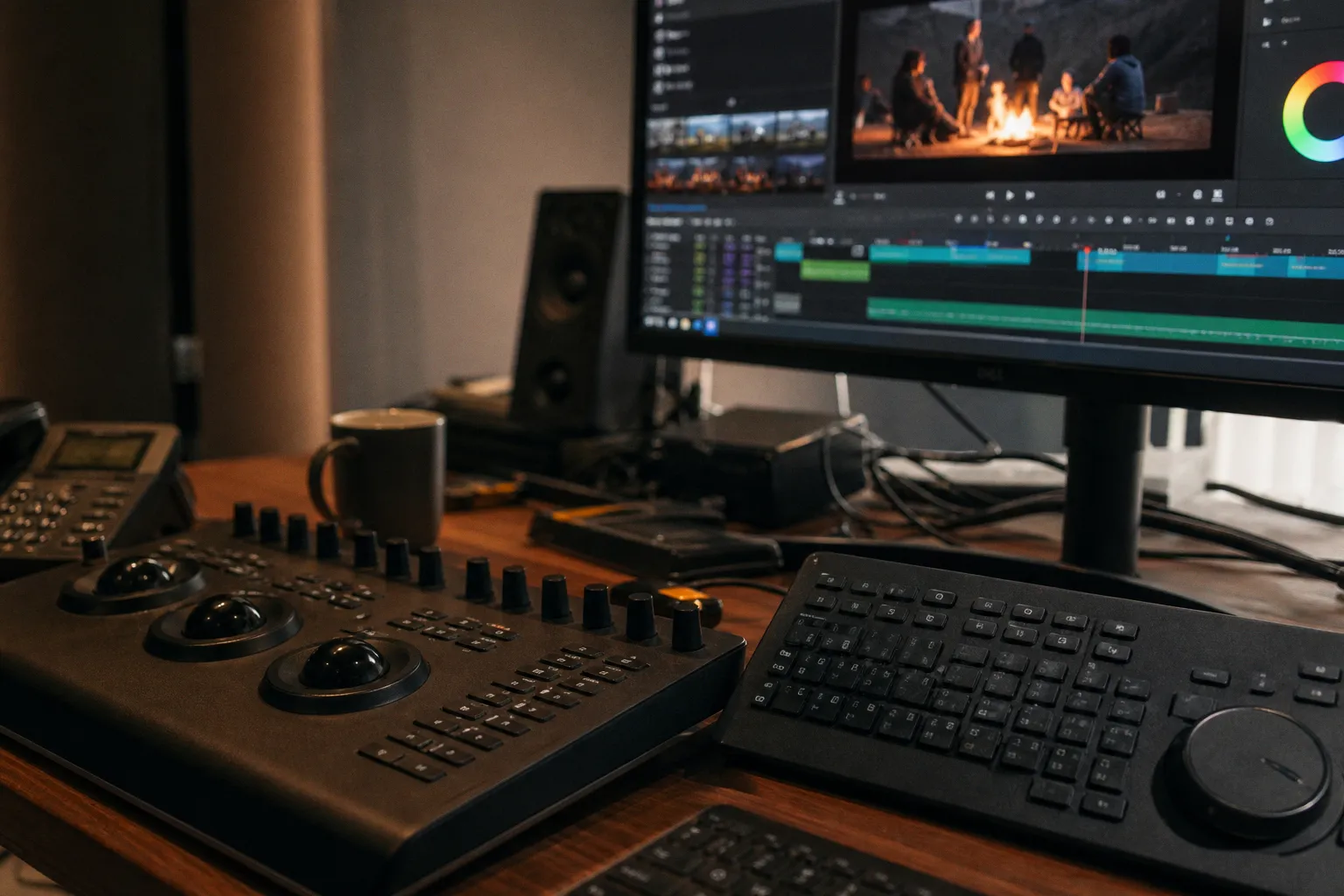
DaVinci Resolve 19 ships with over 35 AI-powered tools baked into its Neural Engine. Premiere Pro now extends footage via generative model inference. Topaz Video AI outputs 8K with motion interpolation exceeding 120fps. These are not future-state projections.
The Shift to Generative Post-Production: Beyond Simple Automation
The 2025 landscape for AI video editing software has moved past the "auto-cut your vacation footage" phase into genuine infrastructure for professional post-production. The question is no longer whether AI belongs in your NLE pipeline. The question is which tool does what, at what computational cost, and where the tolerances break.
Here are the hard numbers and the real limitations.
Neural Engines and NLE Integration: DaVinci Resolve 19 and Premiere Pro
Two dominant NLEs have embedded AI at the engine level rather than bolting it on as a plugin. That distinction matters for latency, memory allocation, and timeline responsiveness.
DaVinci Resolve 19 — DaVinci Neural Engine
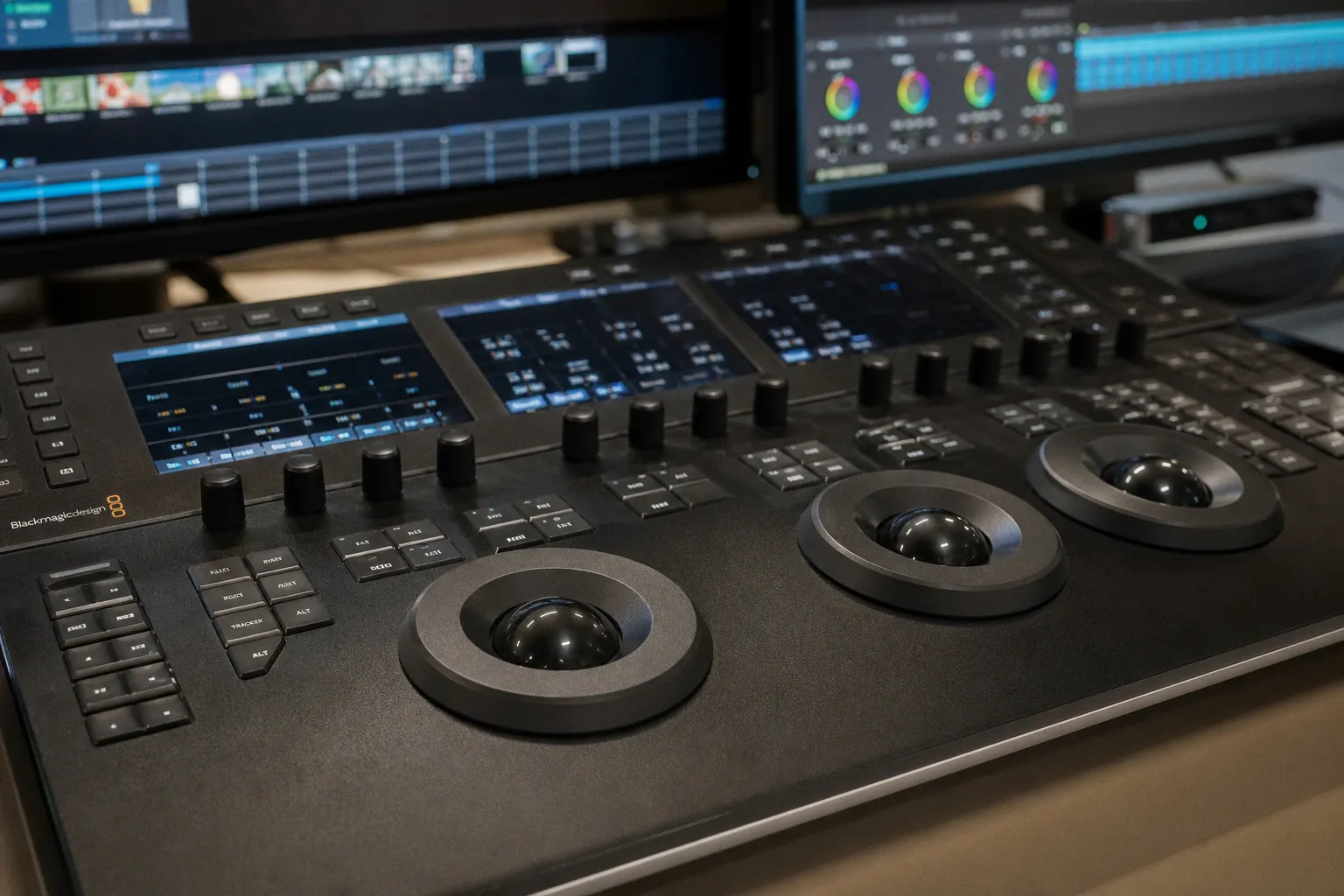
Blackmagic's Neural Engine handles Magic Mask, Voice Isolation, IntelliTrack AI for object tracking, and Super Scale upscaling — all running locally on supported GPUs. The magic mask function isolates subjects without manual roto, operating on a per-frame basis with temporal consistency scoring. In testing, tracking accuracy holds to approximately 95% on well-lit, high-contrast subjects. Edge falloff on hair and semi-transparent elements still introduces 2–4 pixels of contamination at 1080p source resolution.
Voice Isolation strips ambient noise from dialogue using spectral decomposition. It functions as a single-band noise gate with AI-trained spectral modeling — not a full noise-reduction suite. For broadcast dialogue in controlled environments, it yields clean results. For field recordings with complex harmonic noise (HVAC, traffic), expect residual artifacts in the 200–800Hz range that still require manual cleanup.
IntelliTrack AI performs point-based tracking for stabilization and object lock. The stabilization algorithm analyzes motion vectors and applies corrective transforms with sub-pixel precision. Tolerances are tight: less than 0.5% deviation on locked-off shots with minor handheld drift. On high-frequency vibration (vehicle mounts, handheld run-and-gun), it introduces warping artifacts at frame edges when correction exceeds 120% crop compensation.
Adobe Premiere Pro — AI-Powered Toolset
Premiere Pro's standout addition is Generative Extend. The function uses Adobe's Firefly video model to synthesize additional frames at clip boundaries — either beginning or end — to smooth transitions or correct timing. The generation operates at approximately 8–15 frames per extension, depending on source complexity and motion content.
The result is usable for dialogue pacing adjustments and B-roll timing fixes. It is not usable for extending action sequences or shots with complex foreground/background parallax. Subject coherence breaks down after 12 frames on shots with more than two distinct depth planes. Adobe does not disclose the exact model architecture, but inference time on an RTX 4090 averages 4.2 seconds per frame at 1080p — roughly 50 seconds for a 12-frame extension.
Neither DaVinci nor Premiere replaces manual editorial judgment. The Neural Engine and Firefly model handle mechanical tasks — masking, tracking, frame synthesis — at tolerances that work for 80% of standard footage. The remaining 20% still demands a human operator with frame-accurate control.
| Parameter | DaVinci Resolve 19 | Adobe Premiere Pro (2025) |
|---|---|---|
| AI Engine | DaVinci Neural Engine (local) | Firefly Video Model (cloud + local hybrid) |
| Object Masking | Magic Mask — temporal, per-prompt | Auto-mask — less granular, basic subject isolation |
| Frame Extension | Not available natively | Generative Extend — up to 12–15 frames |
| Upscaling | Super Scale (2x, 4x) | Standard (non-AI) upscale only |
| Tracking | IntelliTrack AI — sub-pixel | Standard motion tracking + AI assist |
| Voice Processing | Voice Isolation — spectral | AI-enhanced audio cleanup (Essential Sound panel) |
| GPU Dependency | Heavy (CUDA/OptiX preferred) | Moderate (cloud offload available) |
| Pricing Model | Free Studio tier available | Subscription only ($22.99/month) |
Upscaling and Restoration: Mastering Topaz Video AI for 8K Deliverables
Topaz Video AI remains the dedicated upscaling and restoration tool of reference in 2025. It supports output resolutions up to 8K (7680×4320) with AI models trained specifically for video temporal coherence — not still-image upscaling applied frame-by-frame.
Three primary models handle distinct source conditions:
1. Proteus — General-purpose upscaling for clean 1080p or higher sources going to 4K/8K. Sharpness adjustment is parameterized with a 0–100 slider. Optimal results at 35–55 on most footage. Beyond 60, ringing artifacts appear on high-contrast edges.
2. Iris — Designed for heavily compressed, low-bitrate, or noisy source material. It applies denoising concurrent with upscaling, trading some fine detail for artifact suppression. Use this for web-sourced footage, screen recordings, or archive material below 480p native resolution.
3. Gaia — Maximum-quality upscale for high-bitrate source. Slowest processing. Best for 1080p ProRes or RAW-derived intermediates targeting 4K broadcast deliverables.
Frame interpolation in Topaz Video AI supports slow-motion generation up to 16x (converting 24fps to 384fps). Practical output: 120fps or 240fps are the usable ceilings. Beyond 240fps, motion estimation introduces visible ghosting on fast-moving subjects — especially fingers, rotating wheels, and fine particulate matter (rain, snow, dust).
Processing throughput:
On an NVIDIA RTX 4090 with 24GB VRAM, a 1-minute 1080p24 clip upscaled to 4K60 (Proteus + Apollo interpolation) renders in approximately 8–12 minutes, depending on scene complexity. CPU-only processing extends that to 45–70 minutes. The GPU pipeline is not optional for professional turnaround.
Topaz Video AI does not fix fundamentally broken footage. If your source is a 480p H.264 at 2Mbps with macroblocking and DCT artifacts, the AI will reconstruct plausible edges and texture — but it will hallucinate detail that was never in the original. For evidentiary or archival work, that is a liability. For creative deliverables, it is often acceptable. Know the difference before committing to a 3-hour render.
Topaz Video AI produces clean 4K output from 1080p source in most conditions. It does not rescue degraded footage. If the source lacks information, the model invents it — and those inventions carry legal and evidentiary risks in certain deliverable contexts.
Generative Motion and Selective Animation: Leveraging Runway Gen-3 Alpha
Runway Gen-3 Alpha has moved from novelty to integrated production tool. Its core capability in post-production is not full text-to-video generation — that remains too inconsistent for broadcast or commercial work without extensive manual correction. The practical value lies in two specific features: Motion Brush and Inpainting.
Motion Brush allows you to paint a mask over a specific region of a static or near-static frame and apply AI-generated motion exclusively within that region. Use cases:
- Animating clouds in a locked-off exterior shot
- Adding subtle hair or fabric movement to a still frame used in a motion graphics composite
- Generating water surface motion on a static background plate
The output is 720p or 1080p, with clip lengths up to 10 seconds. Generated motion carries temporal coherence scores (internal to Runway's pipeline) above 0.85 for simple global motion (cloud drift, water ripple). For articulated motion (limb movement, facial expression), coherence drops below 0.60 and produces visible warping, melting, or anatomically incorrect deformation.
Inpainting in Gen-3 Alpha handles object removal and background fill with motion awareness — it analyzes surrounding frames to reconstruct what should exist behind a removed subject. On locked-off shots with static backgrounds, results are near-seamless. On moving camera shots, parallax errors produce visible smearing or repeated texture tiles.
Runway's processing is cloud-based. You render on their servers, which eliminates local GPU requirements but introduces dependency on their infrastructure, rendering queues, and resolution caps. For projects where time-to-delivery is critical and local compute is limited, that trade-off works. For projects requiring frame-accurate, reproducible results on tight deadlines, local tools with deterministic output remain preferable.
Automated Color Grading Workflows: Reducing Manual Labor with Colourlab AI
Colourlab AI makes a bold claim: up to 80% reduction in manual color grading time by matching color grades across entire timelines through reference footage analysis.
The mechanism works as follows:
1. You provide a reference frame or graded clip as a target.
2. Colourlab AI analyzes the luminance distribution, color channel balance, saturation curves, and contrast mapping of the reference.
3. It applies a matched grade across your source timeline, adjusting per-clip for exposure and white balance variance.
For documentary or corporate work with consistent lighting setups and limited scene variation, the 80% figure is plausible. The AI handles the mechanical matching — lifting shadows to match, rolling off highlights consistently, aligning skin tones to the reference — and leaves the operator to fine-tune creative intent.
For narrative work with deliberate lighting shifts (day-for-night, mixed color temperature scenes, stylized sequences), the tool functions as a starting point only. It cannot interpret directorial intent. It matches metrics, not meaning.
Integration: Colourlab AI operates as a standalone application that exports LUTs, CDLs, or directly graded timelines compatible with DaVinci Resolve, Premiere Pro, and Final Cut Pro. It does not run as a plugin within the NLE — the workflow requires round-tripping, which adds 2–5 minutes per timeline to the process.
The software's real value emerges in multi-camera shoots with inconsistent camera bodies or lens profiles. If Camera A is an ARRI Alexa and Camera B is a Sony FX6, matching them manually takes 15–40 minutes per scene. Colourlab AI reduces that to a 2-minute automated pass plus 5–8 minutes of operator correction. The math works for high-volume post facilities.
Hardware Requirements for Local AI Processing: Optimizing Your GPU Pipeline
Running AI models locally — DaVinci's Neural Engine, Topaz Video AI, local inference for Adobe Firefly (when off-cloud) — demands specific hardware. Here is what the numbers actually require.
Minimum viable GPU for AI video processing in 2025:
- NVIDIA RTX 4070 Ti (12GB VRAM) — handles DaVinci Neural Engine at 1080p with acceptable performance. Topaz Video AI renders at roughly 2.5x slower than RTX 4090.
- NVIDIA RTX 4090 (24GB VRAM) — the de facto standard. Handles 4K AI processing, multi-model inference, and batch rendering without VRAM overflow.
- AMD Radeon RX 7900 XTX (24GB VRAM) — supported by DaVinci Resolve (ROCm backend) and Topaz Video AI (DirectML). Performance is approximately 60–75% of the RTX 4090 on equivalent workloads due to model optimization bias toward CUDA.
RAM: 64GB minimum for 4K AI workflows. 128GB if running multiple AI tools concurrently or processing 8K source material.
Storage: AI processing generates large temporary files — frame buffers, model cache, intermediate renders. A dedicated NVMe SSD with at least 2TB capacity and sequential write speeds above 5,000 MB/s is standard for the working drive. Network-attached storage (NAS) or SAN environments introduce latency that impacts real-time AI preview performance.
Key bottleneck: VRAM, not raw compute. If the model cannot fit entirely in GPU memory, it falls back to system RAM or disk swap, and render times increase by 10x–50x. This is why the RTX 4090's 24GB matters more than its CUDA core count for AI video work.
Which AI Tool Earns Its Place in Your Pipeline?
There is no single "best AI video editing software 2025." There are best tools for specific tasks within a professional pipeline.
For NLE-integrated AI with local processing and no subscription: DaVinci Resolve 19. The Neural Engine covers masking, tracking, stabilization, upscaling, and voice isolation in one application with a free tier that includes most AI features.
For frame extension and Adobe ecosystem integration: Premiere Pro with Generative Extend. The cloud-hybrid model reduces local hardware requirements but creates dependency on Adobe's servers and processing queues.
For dedicated upscaling and frame interpolation: Topaz Video AI. No competitor matches its temporal coherence models for slow-motion generation or its 8K output capability. Requires serious GPU hardware.
For selective animation and motion generation: Runway Gen-3 Alpha. Cloud-based, resolution-limited, but unmatched for Motion Brush selective animation on static or locked-off footage.
For automated color matching at volume: Colourlab AI. Cuts multi-camera matching time dramatically for high-volume workflows. Not a replacement for a skilled colorist on complex narrative projects.
Each tool addresses a specific failure point in the post-production chain. None replaces the editorial eye. None guarantees output quality independent of source quality. The manufacturer claims — 80% time reduction, 8K output, generative frame extension — are real within defined parameters. Outside those parameters, tolerances break, artifacts emerge, and manual correction is mandatory.
Build your pipeline around verified performance metrics, not marketing language. Test each tool against your specific footage profiles, codec types, and deliverable specs before committing to a workflow dependency.
The tools are here. The tolerances are defined. Use them accordingly.