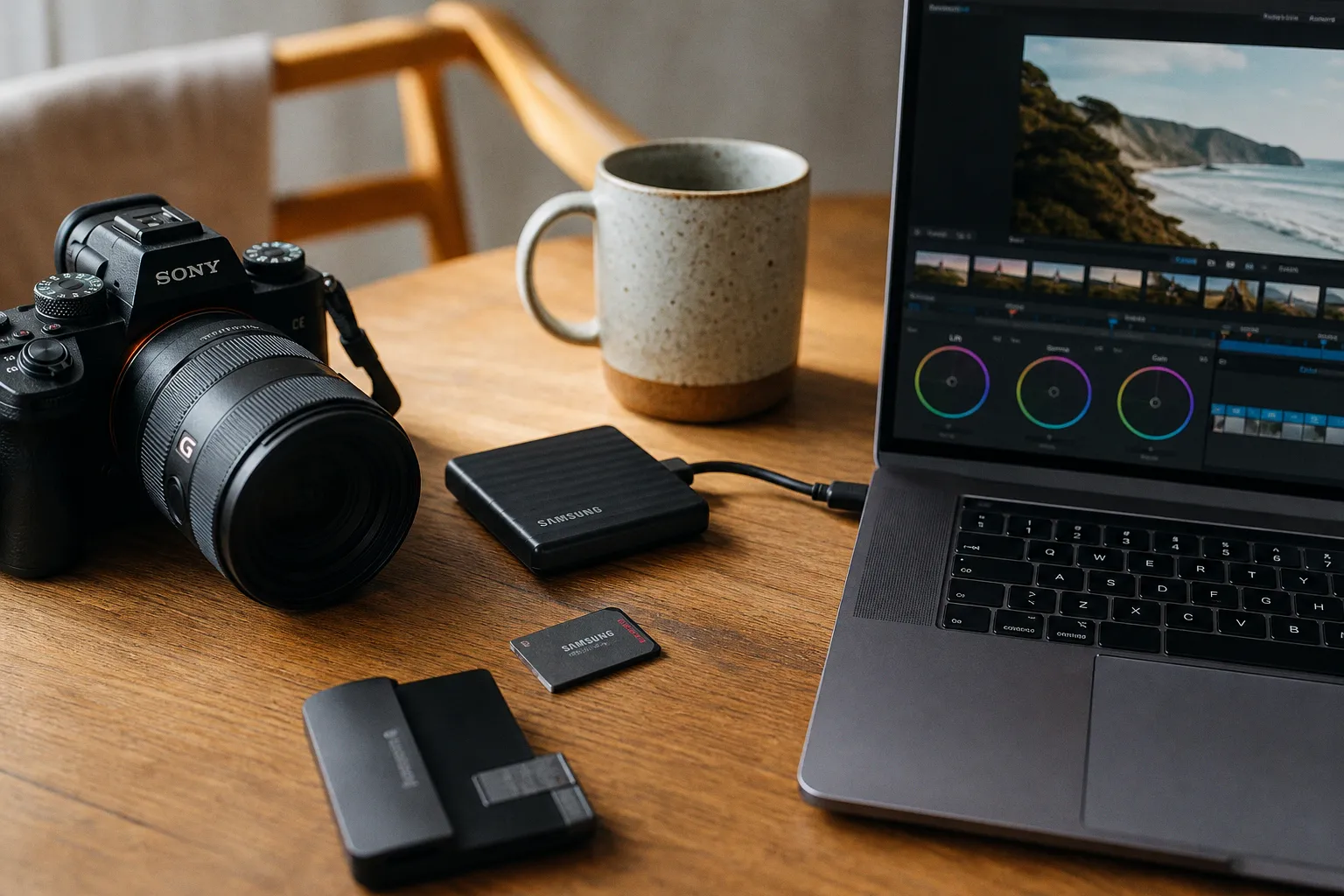
A 4K H.265 clip can look innocent on a timeline and still behave like a 90 dB air-conditioner parked under your dialogue: constant, fatiguing, and very hard to ignore once it starts choking playback.
So when I say I picked the best video editing software for beginners 2026, I do not mean I crowned one shiny icon and walked away. I sat with the friction. I listened to timelines breathe. I watched where playback dropped frames, where voice isolation smeared consonants, where auto-captions saved an hour, and where a “simple” color panel gave a new editor enough rope to either make something elegant or ruin skin tones in three clicks.
The beginner market has split into three very different temperaments: DaVinci Resolve for people who want to grow into a serious post-production room, CapCut for people making fast social work with AI doing much of the heavy lifting, and Adobe Premiere Pro with After Effects for those willing to pay rent in the Adobe ecosystem because motion graphics and professional handoff still matter.
The right beginner editor is not the one with the most buttons. It is the one whose timeline noise floor stays low enough for you to hear your own decisions.
The Shift Toward AI-Driven Workflows in 2026
The loudest change in beginner editing is not a codec, not a camera, not even the slow march of vertical video into every client brief. It is automation becoming ordinary.
Auto-captions are no longer a novelty. Background removal, once the sort of feature that felt like a nervous demo at a trade show, is now a casual button in beginner-friendly apps. AI voice isolation is not perfect — I can still hear it chewing on room tone if the source is ugly enough — but it has become useful enough that a first-time editor can rescue a noisy interview without opening a dedicated audio restoration suite.
This matters because beginners do not usually fail at editing because they lack imagination. They fail because the workflow attacks them from six sides at once. Their footage is in H.265/HEVC, their laptop fan is rising like broadband hiss, the client wants captions by lunch, and the music bed is masking the voice around 1–3 kHz where intelligibility lives. A good 2026 beginner editor has to absorb some of that chaos.
But I am fussy about AI in post. Fiercely so. Automation is a lovely assistant and a dreadful taste-maker. It can identify silence, generate captions, mask a face, separate a voice from a fan, or pull a subject off a background. It cannot know why the half-second pause before a line matters, or why the transient snap of a cut should land just before the beat instead of politely on top of it.
That is the emotional trap of beginner software in 2026: some tools make editing feel easy by removing decisions, while better tools make editing easier by helping you hear, see, and shape those decisions more clearly.
Here is the landscape as I hear it from the desk:
| Software | Best beginner fit | What feels strongest in 2026 | Where it can bite |
|---|---|---|---|
| DaVinci Resolve | Beginners who want professional growth without paying immediately | Color grading, audio tools, AI features such as Magic Mask and voice isolation in the free ecosystem | The interface can feel like several studios stitched into one building |
| CapCut | Social-first creators, short-form editors, fast caption-heavy work | Auto-captions, background removal, templates, trending effects, rapid mobile-to-desktop flow | It can encourage sameness if you let effects lead the edit |
| Adobe Premiere Pro | Beginners aiming at agency, broadcast, YouTube teams, or motion-heavy work | Industry familiarity, After Effects integration, professional motion graphics workflow | Subscription-only cost and a steeper ecosystem commitment |
| Apple iMovie / beginner-native editors | Absolute first cuts, family projects, simple YouTube pieces | Low intimidation, quick assembly | You may hit creative walls quickly once color, sound, and graphics matter |
I will not pretend every beginner needs the same room. A TikTok editor cutting daily product clips has different acoustic pressure on the workflow than a short-film student trying to shape a scene with silence, breath, and shadows in the low mids. The software should match the work, not the other way around.
DaVinci Resolve: Professional Color and AI Power for Free
DaVinci Resolve remains the most startling value in beginner editing because its free version is not a toy wearing professional clothes. It is a serious post-production suite with a learning curve, yes, but also with enough depth that you can start by trimming clips and end up grading, mixing, and delivering work that belongs in a real pipeline.
Resolve 19 and its 2026 updates keep it in the center of this conversation. The free version includes professional-grade color tools, and features such as Magic Mask and AI-based voice isolation have made it less punishing for new editors who are trying to solve practical problems quickly.
The first thing I tell beginners about Resolve is this: do not open every room at once. It has pages for media, cutting, editing, Fusion, color, Fairlight, and delivery, and if you sprint through all of them on day one you will feel the interface pushing back. Start with the Cut or Edit page. Learn the timeline. Learn how your footage behaves. Then move into Color. Then Fairlight.
As a sound designer, I have a special affection for Resolve because Fairlight is not an afterthought tucked under a vague “audio” tab. It is a proper audio environment. You can see meters that mean something. You can shape dynamics. You can manage dialogue with more respect than a single volume slider. And when AI voice isolation works, it can reduce the intrusive broadband scum of a bad room without completely hollowing out the voice.
Not always. Let me be pedantic for a moment, because someone has to defend the consonants. Voice isolation can create little phasey artifacts around sibilance and breath. If a refrigerator is sitting under a speaker’s voice at the same frequency band, no button performs witchcraft without cost. You may lower the noise floor, but you can also thin the body of the voice around 150–300 Hz or make the top end feel papery. Use your ears. Toggle the processing. Do not let “clean” become sterile.
Where Resolve really teaches beginners is in color. Many apps give you filters; Resolve gives you grading. There is a difference. A filter is a flavor poured over everything. A grade is an argument with the image, the codec, the lighting, the skin tone, and the emotional temperature of the scene. Beginners who learn this early become better editors because they stop treating the timeline as mere arrangement and start treating it as a continuity of perception.
For the beginner who wants to grow into narrative work, music videos, documentary, commercial edits, or anything where color and audio matter, Resolve is my most serious recommendation.
Why Resolve suits the patient beginner
1. The free version has genuine headroom. You can begin without a subscription and still touch serious color, editing, and audio tools.
2. The workflow grows with you. A simple timeline can become a full post pipeline without moving projects into another application.
3. The color page teaches discipline. You learn exposure, contrast, saturation, curves, and qualifiers instead of hiding behind presets.
4. Fairlight respects sound. Even if you only adjust dialogue and music at first, the tools invite better habits.
5. AI features solve real problems, not just decorative ones. Magic Mask and voice isolation are useful when used with restraint.
The catch is performance. Resolve likes capable hardware, especially when you throw 4K H.265/HEVC footage, noise reduction, effects, and AI operations at it. If your machine is thin on RAM or GPU memory, the software will let you know in the blunt language of dropped frames.
CapCut: Streamlining Social Media and Rapid Content Creation
CapCut is the editor I would hand to someone who needs to publish before the coffee cools. It is dominant among beginner tools for a reason: auto-captions, background removal, trending effects, social formats, and quick exports are not hidden behind a philosophy lecture. They are simply there, waiting to be used.
For social-first editing, that matters. A beginner cutting talking-head videos, product demos, short explainers, reaction clips, or campaign snippets does not always need a full color suite. They need speed, captions that land close enough to fix quickly, formats that match platforms, and enough motion to keep the scroll from swallowing the video whole.
CapCut’s AI features are not just ornamental. Auto-captions can remove one of the most tedious beginner tasks. Background removal gives creators a fast way to isolate subjects without a green screen. Its effect library is tuned to the language of social media, where the edit must announce itself quickly or vanish.
Still, the danger with CapCut is tempo inflation. Everything wants to jump, pop, pulse, glow, or snap. The software can seduce beginners into thinking energy equals editing. It does not. Energy without rhythm is just a harsh transient repeated until the viewer’s attention distorts.
I notice this most in audio. Templates often treat music like wallpaper and dialogue like an inconvenience. If the music bed is too loud, it masks speech intelligibility. If captions carry all the meaning, editors stop listening to whether the voice actually feels present. If every cut lands with the same whoosh, the ear stops registering impact.
CapCut is excellent when the job is speed and volume. It is less ideal when the job requires subtlety, complex color management, deep audio repair, or a long-form structure with carefully controlled pacing. But for the beginner whose main output is vertical, frequent, caption-heavy, and culturally current, CapCut may be the least punishing first editor in 2026.
CapCut is fast because it removes friction. Resolve is powerful because it teaches friction. Beginners should know which kind of resistance they need.
I would use CapCut for a daily social campaign without apology. I would not use it as my main room for a documentary mix, a color-sensitive brand film, or a piece where the pause between two lines carries half the story.
Adobe Premiere Pro: The Subscription Standard for Motion Graphics
Adobe Premiere Pro is not the cheapest road into editing, and for an absolute beginner that matters. The subscription-only model is a real barrier, especially when DaVinci Resolve offers so much for free and CapCut covers rapid social work with very little ceremony.
But Premiere Pro remains difficult to dismiss because it lives inside the Adobe ecosystem, and that ecosystem still has gravity. Premiere with After Effects is the familiar route for professional-grade motion graphics, agency handoffs, branded content packages, YouTube teams, and editors who need to pass projects between specialists. If your beginner path points toward professional collaboration, you will likely meet Premiere sooner rather than later.
What Premiere does well is editorial flexibility. It is comfortable with layered timelines, mixed media, round-tripping, captions, multicam work, and integration with the wider Adobe suite. After Effects remains the standard companion for motion graphics, title sequences, animated explainers, and the sort of compositing that quickly exceeds what a basic editor wants to handle.
For a beginner, though, Premiere can feel like paying for an entire control room before you know where the monitors should sit. That is not a moral failure of the software; it is a mismatch risk. If you only need to cut social clips, the subscription will feel heavy. If you plan to work with motion designers, brand teams, or post houses that already breathe Adobe, the cost begins to make more sense.
From an audio standpoint, Premiere is competent, but I still feel the difference between a timeline that permits sound work and a workspace that invites it. You can mix in Premiere. You can clean dialogue to a degree. You can manage levels and essential sound tasks. But when I want to sculpt a scene’s sonic texture — the dense little movements of room tone, cloth, breath, music sidechain, and transient detail — I prefer tools that let audio occupy the room rather than sit politely at the end of the table.
For beginners, I would choose Premiere Pro when the goal is not merely learning to edit, but learning to work in a professional Adobe-centered environment.
Where Premiere earns its keep
- Motion graphics pipeline: Premiere plus After Effects remains a serious standard for animated graphics and compositing-adjacent work.
- Collaborative familiarity: Many teams, agencies, and editors already know Adobe workflows, which lowers handoff friction.
- Long-term professional relevance: Beginners who want editing jobs may benefit from learning the tool used in many commercial environments.
- Strong all-round editing: It handles a broad range of projects, from online content to more structured productions.
And yet I would not bully every beginner into it. Software should not turn the first month of editing into a subscription anxiety test. If you are still discovering whether you enjoy cutting at all, start elsewhere unless Adobe’s ecosystem is already part of your work.
Hardware Requirements: The Part Beginners Ignore Until Playback Starts Coughing
The best video editing software for beginners 2026 is only as pleasant as the machine under it. This is where many new editors get blindsided. They blame the app for sluggish playback when the real culprit is the brutal little triangle of resolution, codec, and hardware.
Modern cameras, phones, drones, and mirrorless bodies love H.265/HEVC because it compresses 4K efficiently. Efficient for storage, yes. Gentle on your editing machine, not always. H.265 can be computationally dense; it asks the system to decode a lot of information in real time. Add color correction, captions, noise reduction, stabilization, or AI masking, and the timeline starts to feel like a compressor clamping down too hard on a vocal.
As of 2026, I treat 16GB of RAM as the practical minimum for 4K editing, not a luxury. For smoother 4K and 6K workflows, 32GB is the healthier recommendation. On the GPU side, dedicated graphics with at least 8GB of VRAM is the baseline I would want for modern codecs and effects-heavy work.
External storage is not just a place to dump files. If you edit 4K footage directly from an external drive, slow storage can become the hidden rumble under the entire session. USB 3.2 Gen 2x2 at 20Gbps or Thunderbolt 4 at 40Gbps is now the sensible minimum for external SSD workflows where dropped frames are not welcome.
| Workflow | Sensible 2026 baseline | Why it matters |
|---|---|---|
| Basic 1080p editing | 16GB RAM, integrated or modest dedicated GPU | Keeps simple timelines responsive without overspending |
| 4K H.265/HEVC editing | 16GB RAM minimum, dedicated GPU preferred | HEVC decoding can punish weak systems |
| Comfortable 4K / light 6K | 32GB RAM, GPU with at least 8GB VRAM | More headroom for color, effects, captions, and AI tools |
| External 4K editing | USB 3.2 Gen 2x2 or Thunderbolt 4 SSD | Prevents storage speed from causing playback instability |
| AI-heavy workflows | 32GB RAM and strong GPU recommended | Masking, isolation, and background removal need real compute |
This does not mean every beginner needs an extravagant workstation. Please do not buy a monster tower just to trim vacation clips. Hardware needs depend on footage. A simple 1080p project behaves differently from 4K 10-bit H.265 footage with effects stacked like badly tuned EQ bands.
I also keep an eye on the business side of post-production technology because budgets, subscriptions, and hardware cycles are not artistic abstractions; they decide what small studios can actually run. For broader industry and market context outside the edit bay, I occasionally scan concise business digests such as NW Bulletin, because the economics around software and hardware have a way of arriving in the studio before anyone politely announces them.
Beginners should learn one unglamorous habit early: test the actual footage you plan to edit. Not a demo clip. Not a compressed download from a tutorial. Your footage, from your camera or phone, in your codec, on your drive, with your machine. That test will tell the truth with no marketing gloss.
My Actual Picks, By Beginner Type
There is no single winner without a user attached to it. Anyone declaring otherwise is flattening the craft into a shopping headline. Here is where I land after testing these tools against real beginner pressures.
If you want to become a serious editor: DaVinci Resolve
Choose Resolve if you want to grow into color, audio, delivery, and a more complete post-production mindset. It is the best starting point for a beginner who has patience and ambition. The free version is unusually capable, and the software does not trap you in a shallow pool.
The learning curve is real, but it is productive. Resolve teaches you the architecture of post: media organization, timeline construction, color correction, audio work, and export discipline. It can feel large at first, but that largeness has purpose.
If you want to publish fast on social: CapCut
Choose CapCut if your work lives in short-form platforms, captions, quick effects, and rapid turnaround. It is built for speed. It understands the social-media grammar of 2026 better than traditional editors that later bolted on vertical templates.
Just keep your taste intact. Lower the music when dialogue matters. Do not let every template dictate the cut. Listen for fatigue. If the edit feels like a snare drum with no decay, pull back.
If you want professional motion graphics and industry familiarity: Premiere Pro
Choose Premiere Pro if you are moving toward Adobe-based teams, agency work, motion graphics, or an environment where After Effects integration is part of the job. It costs more over time, and that cost is not trivial for beginners, but the ecosystem remains professionally relevant.
I would not make it the default recommendation for everyone. I would make it the recommendation for beginners whose destination already points toward Adobe-shaped work.
If you are still afraid of the timeline: start simpler, then move
There is no shame in beginning with a simpler editor if even basic trimming feels strange. What I object to is staying there after your ideas outgrow the tool. The moment you care about color consistency, dialogue clarity, music balance, graphics, delivery specs, or client revisions, move into software that can hold those decisions without fighting you.
The Sound Designer’s Final Word on Beginner Editing
Editors often talk about cutting as if it happens only in the eye. I have never believed that. A cut has a sound even when there is no sound effect on it. It has a pressure change, a tiny psychoacoustic expectation, a shift in breath. Bad beginner software hides those sensations under templates and default music beds. Better software leaves enough quiet around the decision for you to notice what the edit is doing.
For most beginners in 2026, my recommendation is this: start with DaVinci Resolve if you want the strongest long-term craft foundation, choose CapCut if your work is fast social publishing, and pay for Premiere Pro when Adobe collaboration and motion graphics are truly part of your path.
Do not choose by feature count alone. Choose by the kind of attention the software encourages. The best editing room, even on a beginner’s laptop, is the one where playback is steady, the noise floor is low, the voice remains intact, and every cut earns its little burst of air.