The easiest video editing software for beginners is not one universal app. It is the editor that removes the most friction from your device, your footage, and the first video you need to finish.
For an Apple-first creator, that is iMovie. On a Windows laptop or a desktop browser, Microsoft Clipchamp has the cleanest runway. If you need handrails while learning a more conventional edit workflow, Adobe Premiere Elements is built around them. And if your “beginner video” already needs serious colour, compositing, sound cleanup, and a path into professional post, DaVinci Resolve is the free tool with the biggest ceiling—but not the lightest first step.
That distinction matters. A simple cut, a title, music, and an export should not require navigating a cockpit of scopes, nodes, codec options, and delivery presets. Not on day one. The best video editing software for beginners is the one that gets your first finished upload out before the momentum disappears.
The fastest edit is not the one with the most AI buttons. It is the one whose workflow matches the hardware already on your desk.
The Apple ecosystem: iMovie turns footage into a structure
iMovie is still the most obvious answer for creators already shooting and working on Apple hardware. It is free on iPhone, iPad, and Mac, and that matters because the first barrier in post-production is often not skill. It is setup. Downloading a giant application, creating an account, learning a media-import routine, then discovering that your phone clips live somewhere else—that is enough to kill a first project.
With iMovie, footage from an iPhone is already in the same ecosystem. The app’s interface keeps the core decisions close: choose shots, place them in order, trim the edges, add a title, add music, export.
Apple has pushed that low-friction idea further with Magic Movie. Feed it a group of clips and photos, select an overall style, and it can assemble a cut with titles, transitions, and music. Crucially, it does not lock the editor behind automation. The result appears as a simple shot list: rearrange a clip, remove the weak take, change the order. That is a useful first lesson in editing because it puts the beginner’s attention where it belongs—selection and rhythm—rather than on panels and parameters.
On iPhone and iPad, iMovie also offers 20 Storyboards for common video formats. These are more than blank templates. Each storyboard provides placeholders for specific kinds of shots, then applies a connected visual style with titles, fonts, filters, colour palettes, and music. For a product reveal, recipe, travel recap, or quick social video, that structure answers the question new editors usually freeze on: what shot comes next?
There is a creative trade-off. Storyboards give you momentum, but they also shape the pacing before you have developed your own taste. That is fine at the start. Use them as training wheels, not an aesthetic prison.
iMovie can work with 4K and 60 fps source footage when the project and device support it. But do not make a planning decision from the “60 fps” number alone. Apple’s documented shared 4K output is 3840 × 2160 UHD at 30 fps. If smooth 60 fps delivery is central to a sports clip, gaming capture, or fast-action project, confirm your export path before building the whole edit around it.
Why iMovie feels easier than a pro editor
The app removes choices that are real but premature. A beginner does not need to decide whether to grade in log, build a node tree, conform mixed frame rates, or configure an external audio bus. They need to cut out the pause before the line, find the cleanest reaction shot, and make sure the music does not bury dialogue.
That narrowed surface area is iMovie’s real advantage.
It is also why iMovie is among the best simple video editing apps for Mac users. Not because it is the most powerful tool in absolute terms, but because it makes a coherent first edit without asking the user to become a post-production supervisor.
Clipchamp: the cleanest on-ramp for Windows and browser-first creators
Microsoft Clipchamp is the strongest answer for someone asking for easy video editors for PC—especially if they want to edit without beginning with a heavyweight installation.
It runs in Microsoft Edge or Google Chrome, and Microsoft also provides a desktop app for Windows 10 and Windows 11. That browser-based entry point is significant. A creator can open a supported browser, bring in their own media, cut a short video, and export an MP4 without turning the first session into an infrastructure project.
Clipchamp’s timeline is recognisable enough to teach basic editing grammar: clips sit in sequence, trims happen at clip edges, titles and music are added as layers, and the final project becomes a shareable video. That is the right amount of “real editor” for a new user. You are learning the language of a timeline without being buried under the full vocabulary of a high-end finishing system.
Its Auto Compose feature adds an AI-assisted route for creators with a pile of clips and no edit plan. The feature uses AI models to generate a video from the user’s media, producing a 1080p MP4 result that can then be opened and altered in the timeline. That last part is the point. AI assembly is a starting pass, not a verdict.
Want a tighter 20-second social cut? Replace the music. Remove the generic transition. Shorten the first shot. Put the strongest frame before the title card. The editable timeline lets a beginner see the automated decisions and then improve them.
There are hard export boundaries, though. Clipchamp’s personal free tier supports 480p, 720p, and 1080p output. Finished projects export as MPEG-4 (.mp4) at 30 fps. For YouTube explainers, class presentations, family videos, social clips, and first client experiments, 1080p MP4 is often enough. For a 4K creator workflow, it is not a minor footnote: 4K export requires an eligible Microsoft 365 Personal or Family subscription, or Clipchamp Premium.
And do not mistake browser access for universal device access. Clipchamp is not optimized for touch-screen devices such as iPads and tablets. If your work happens primarily on an iPad, iMovie is the cleaner fit.
Browser editing wins when you need a fast launch. It loses the moment you expect it to behave like a full mobile app or a finishing suite.
Premiere Elements gives beginners a map, not just a timeline
Adobe Premiere Elements takes a different route. Instead of reducing the editor to a single mode, it separates the experience into Quick, Guided, and Advanced workspaces.
This is a more deliberate learning ladder than a one-screen app.
Quick mode handles the essential moves: trimming, splitting, rearranging scenes, adding music, and applying one-click effects. That is where a beginner should begin. The aim is not to discover every control; it is to understand sequence. Put the clips in an order. Remove the dead space. Make the audio feel intentional. Export something watchable.
Guided mode is where Premiere Elements earns its place for a certain kind of learner. Some people can learn by pressing buttons and undoing mistakes. Others need an application to say: first do this, then look here, then make this edit. Guided workflows turn a vague task into a sequence of manageable decisions.
Advanced mode is waiting once the basic mechanics are familiar. That progression makes more sense than throwing a first-time editor into a fully expanded professional interface and calling the confusion “industry standard.”
The caveat is simple: Premiere Elements is not the automatic cheapest choice, and current regional pricing, subscription conditions, and bundled assets should be checked directly before purchase. It belongs in this conversation because of the workflow design, not because every beginner needs another paid creative tool.
For a teacher, a small business owner, or an aspiring editor who wants software to actively explain the next move, Premiere Elements can feel more supportive than a stripped-down browser editor. It is less about instant production and more about building editing habits without brute-forcing the learning curve.
iMovie, Clipchamp, Premiere Elements, or Resolve? Make the choice by workflow
The word “easy” gets used lazily in software marketing. A tool can be easy to open and hard to finish a polished project in. Another can look intimidating at launch but become efficient once a repeatable workflow is in place.
Here is the practical split.
| Workflow reality | Best starting tool | Why it fits | Watch the limitation |
|---|---|---|---|
| You shoot on iPhone and use a Mac, iPad, or iPhone | iMovie | Free Apple-native workflow, Magic Movie, Storyboards, minimal setup | Shared 4K export is documented at 30 fps |
| You work on Windows or a supported desktop browser | Microsoft Clipchamp | Fast access in Edge or Chrome, familiar timeline, Auto Compose can create a first cut | Free personal exports top out at 1080p; finished exports are 30 fps MP4 |
| You want software that teaches as you edit | Adobe Premiere Elements | Quick, Guided, and Advanced modes create a staged learning path | Pricing and included features vary and should be confirmed before buying |
| You want to learn a broad professional post pipeline | DaVinci Resolve | Editing, colour, VFX, motion graphics, and audio in one application | Vast capability means more interface and workflow to absorb |
The wrong move is choosing based on the longest features list. The right move is choosing based on the first six projects you actually intend to finish.
A wedding videographer’s assistant cutting selects is not in the same position as a creator making vertical product demos. A student assembling a 90-second presentation does not need the same tool as a director building a short film with colour-managed camera originals and sound post. “Video editing software for beginners” is a useful search phrase, but beginners do not all start at the same creative altitude.
DaVinci Resolve is free—but it is a graduation path, not a shortcut
DaVinci Resolve changes the conversation because it gives away a startlingly broad post-production environment. The free version supports virtually all 8-bit video formats up to 60 fps and Ultra HD 3840 × 2160. Inside one application, you get editing, colour correction, visual effects, motion graphics, and audio post-production.
That is enormous value. It is also exactly why Resolve should not automatically be called the easiest option for a first-time editor.
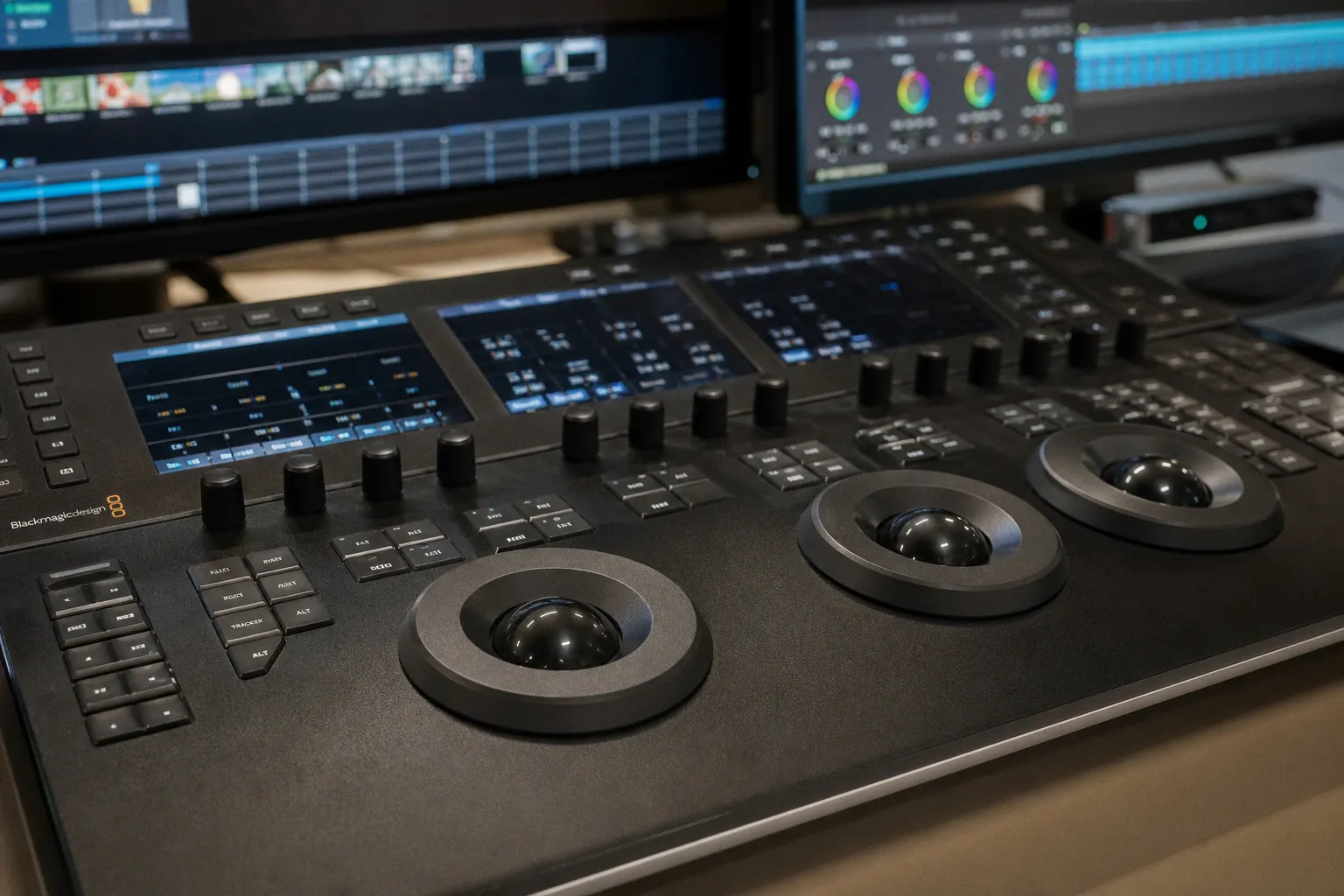
Resolve is designed around a full pipeline. You can cut on the Edit page, shape images in the Color page, build effects in Fusion, and finish sound in Fairlight. That integrated architecture is powerful because projects do not need to bounce across several disconnected apps. But it asks more from the operator. The interface carries the weight of professional choices: media management, timelines, delivery settings, colour science, node-based grading, effects compositing, audio routing.
A beginner can absolutely learn it. Many do. But there is a difference between possible to learn and the fastest way to make the first video.
Start Resolve when one of these conditions is true:
1. You have outgrown preset-based colour. If you want to correct mixed lighting, match camera angles, control skin tones, or develop a consistent visual treatment, Resolve’s colour tools are a real reason to move.
2. Your edit needs VFX or motion work in the same ecosystem. Fusion gives you a node-based compositing environment rather than forcing every effect into a template-shaped box. That is where things like tracking, keying, screen replacements, and more advanced image work begin to become practical.
3. You are building professional muscle memory. Resolve’s project structure and page-based workflow reward repeatable practice. The early hours are slower; the long-term capability is far higher.
4. Your footage has technical demands that starter apps flatten. High-resolution, higher-frame-rate, or demanding codec workflows eventually push creators toward a more complete post pipeline. Resolve Studio, listed at US$295, expands into areas including 10-bit video up to 120 fps and resolutions beyond 4K.
This is not a “graduate because real editors use complicated software” argument. That old badge culture wastes time. Move to Resolve when the project needs what Resolve actually does: deeper image control, integrated VFX, audio finishing, and a workflow that can scale with the work.
The hardware question is not glamorous, but it decides whether editing feels easy
No editor stays easy when the machine is choking on footage.
New creators often blame themselves for a sluggish timeline, delayed playback, or an export that seems to stall forever. Sometimes the interface is unfamiliar. Sometimes the workflow is simply asking too much of the available hardware. These are different problems.
The research does not establish a universal performance ranking between iMovie, Clipchamp, Premiere Elements, and Resolve on low-spec systems. That is the honest answer. Real-world responsiveness depends on the computer, storage speed, available memory, browser state, media codec, resolution, frame rate, and the complexity of the edit itself.
Still, the workflow implications are clear:
- A browser editor has its own constraints. Clipchamp avoids a big initial install, but a desktop browser is still part of the editing environment. Close resource-hungry tabs and avoid treating a crowded browser session as a neutral workspace.
- 4K is not automatically a beginner upgrade. It creates heavier files, raises storage pressure, and makes every weak link in playback more visible. If the final destination is 1080p social delivery, shooting and cutting 4K can be useful, but only if the rest of the workflow can carry it.
- Frame rate affects the whole pipeline. A 60 fps source clip is not a promise of 60 fps final delivery. iMovie’s documented 4K sharing path is 30 fps, while Clipchamp’s finished-project export is 30 fps. Plan the final delivery format before you shoot.
- Storage is part of post-production, not an afterthought. Editing from a nearly full internal drive is a self-inflicted bottleneck. Keep source media, active project files, and exports organized. Even a beginner workflow benefits from clear folders: camera originals, audio, graphics, project, exports.
- AI is not a render-time exemption. Auto assembly can accelerate the first cut, but titles, effects, high-resolution media, and final encoding still require processing. Automation removes decision friction; it does not repeal compute.
That last point is where the current wave of AI-assisted editing needs a reality check. We are entering an era where tools can identify clips, generate rough sequences, clean dialogue, create captions, and help with reframing. Great. Use it. But a latent-space-generated suggestion is not an edit until a human has checked pacing, intent, continuity, and whether the opening shot earns the next ten seconds of attention.
Start simple, then build a pipeline you can actually sustain
For most people, the direct answer is straightforward.
Choose iMovie if you are in the Apple ecosystem and want the most immediate path from phone footage to a coherent video. Its Magic Movie and Storyboards are not gimmicks when you are learning; they are workflow accelerators.
Choose Microsoft Clipchamp if you use Windows or a supported desktop browser and want to make straightforward 1080p MP4 videos without a heavy initial setup. It is the practical browser-first choice, especially for basic social, presentation, and marketing edits.
Choose Adobe Premiere Elements if you learn best through guided tasks and want a more structured bridge between simple edits and a deeper conventional timeline.
Choose DaVinci Resolve if you are ready to spend more time upfront in exchange for a serious colour, VFX, motion graphics, and audio environment that can grow with your ambitions.
The future-facing move is not to install the most formidable application on day one. It is to establish a repeatable loop: ingest, select, cut, refine audio, add only the graphics that serve the story, export, review, repeat.
Start with the tool that lets you finish three videos this month. Then watch what begins to hurt: colour control, titles, audio, effects, delivery quality, collaboration. That pain point is your upgrade signal.
The next generation of beginner-friendly video tools will keep adding AI assembly, API integration, real-time rendering assists, and smarter media organization. But the winning workflow will remain brutally simple: the software should disappear fast enough for you to make choices that viewers can feel.